
- Weatherford Knowledge Base
- Customer Training
- Power User Training Exercise
-
Getting Started
-
Customer Training
-
Customer Success
-
Updates
-
Production Optimization
-
Artificial Lift Optimization
-
Completion Optimization
-
Environmental, Social & Governance
-
Development, Acquisition & Divestitures
-
Enhanced Oil Recovery
-
Admin
-
P#
- Getting Started with P#
- Data Cleansing
- String Functions
- Scenario Functions
- Regression Functions
- Placeholder Functions
- Mathematical Functions
- Logic Functions
- Entities Function
- Moving Window Functions
- Time and Date Functions
- Statistical Functions
- Economic Functions
- Data Handling
- Additional Functions
- Directional Functions
- Machine Learning Functions
- DCA Functions
- Neighborhood Functions
-
Packages
Lesson 12: Quality Check the Basic Workflow
Always check to ensure that the workflows ran and that the data was populated appropriately.
Training Guide
- Navigate to Signals.
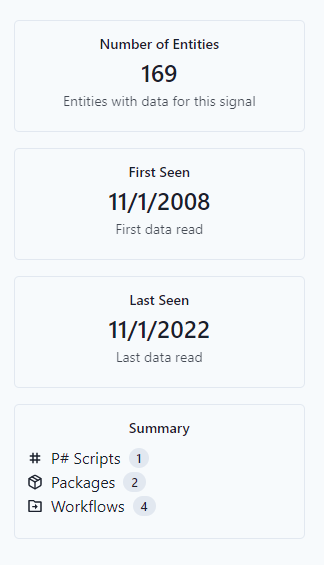
- Click on Cumulative Gas Production.

Notice that the number of entities is correct, and the date range seems reasonable.
The next step is to view the data.
- Navigate to Data.
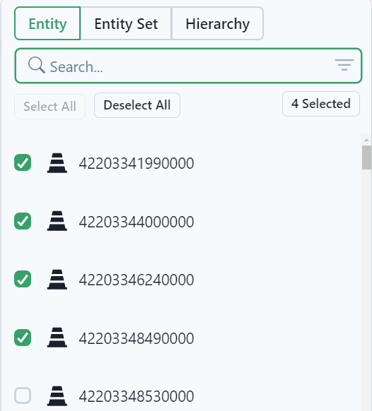
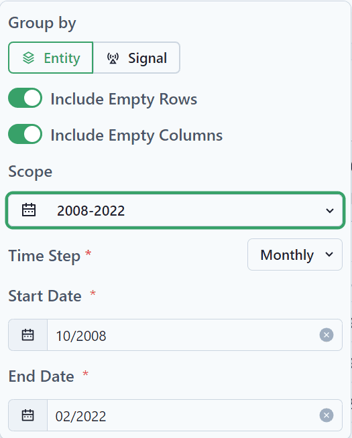
Use the following filter information:
- Time (Numeric)
- Entities: Select the first 4
- Signals: Cumulative Gas Production
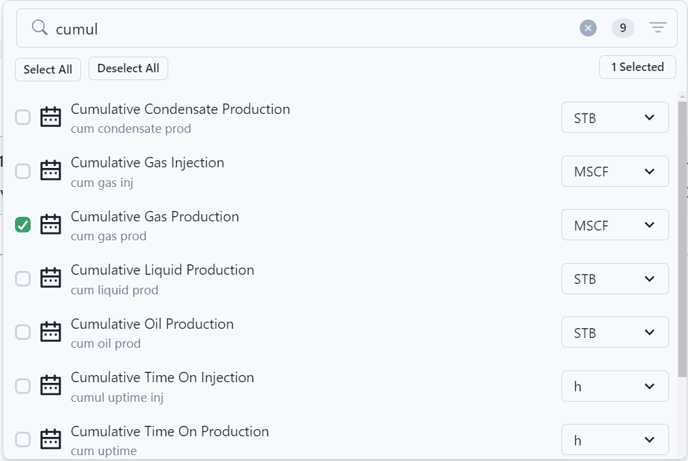
- Date: Scope 2008 - 2022
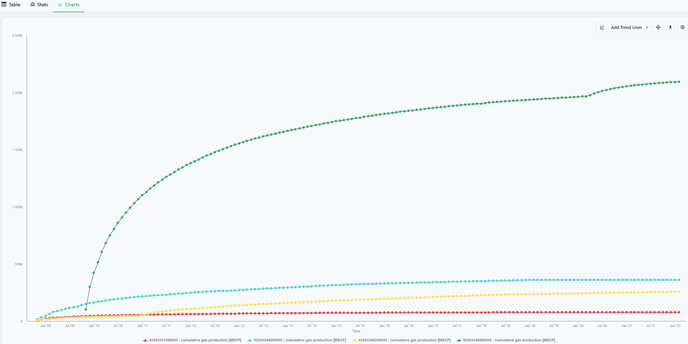
- View as a Chart.
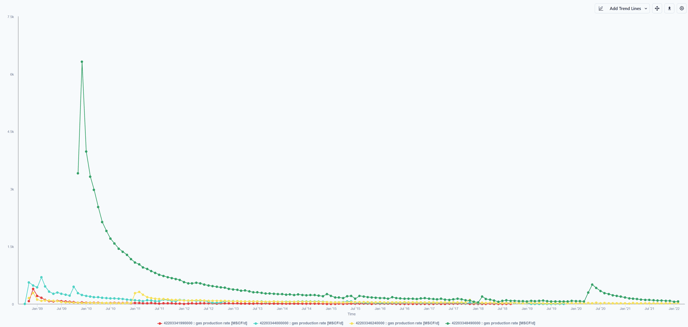
- Change the Signal to view Gas Production Rate.
To further verify the workspace data, check the tags for a specific entity
A Tag has a name, a label, a start date, and an end date. They are used to mark changes in condition or behavior in a well.
- Navigate to Entities.
- Select an Entity.
- Select the Tags tab.
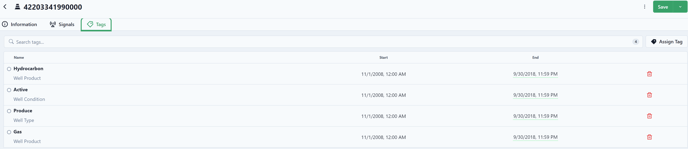
Notice that this well became a gas producer on 11/1/2008 and continued to be a gas well through the data.
Tags are used in scripts to condition calculations.