
User Group Management is in the PetroVisor Admin site or in the PetroVisor Server Configuration app (on-prem).
Retrieving a user’s group memberships requires dedicated Microsoft Graph or LDAP queries and additional permissions, so PetroVisor does not query this information directly. Instead, Entra ID groups can be mapped to existing PetroVisor user groups. PetroVisor user groups provide flexible permission management and can be used to restrict access to specific entities when required.
For an overview of how user groups are set up in general, please see User Group Permissions.
By default, Entra ID provides only the user name, user ID, and email address. Entra ID can be configured to provide additional information, such as organization, first and last name, job title, and phone number. After a successful Entra ID sign-in, PetroVisor can use this information to populate user details that are currently empty.
Linking PetroVisor user groups with Entra ID User groups
To link PetroVisor user groups with Entra ID user groups, navigate to the Security settings of the PetroVisor Admin app and enable "Entra ID user groups synchronization".
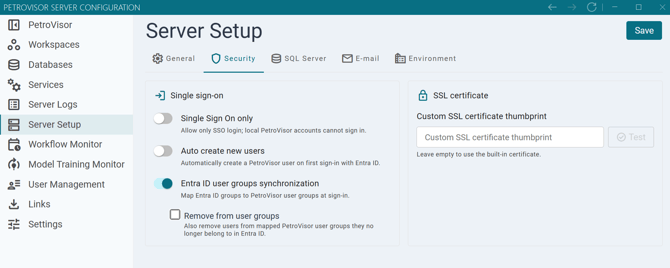
- Sign-in options: By default, users can sign in with either PetroVisor credentials or Entra ID using Sign in with Microsoft. When Single Sign-On is enabled in the settings above, Entra ID becomes the only sign-in option. Users bypass the PetroVisor login page and are redirected to Entra ID for authentication when required.
- Automatic user creation: By default, Entra ID sign-in succeeds only if a corresponding PetroVisor user already exists. When Auto create new users is enabled, PetroVisor automatically creates the user after a successful Entra ID sign-in if no matching PetroVisor user exists.
- Automatic group synchronization: Entra ID can be configured to include the IDs of a user’s group memberships in the authentication claims. When Entra ID user groups synchronization is enabled, PetroVisor uses this information, when available, to automatically add the user to the corresponding mapped PetroVisor user groups. If Remove also is enabled, PetroVisor also removes the user from a mapped PetroVisor group when the user is no longer a member of the corresponding Entra ID group.
- User group mapping setup: PetroVisor user group mappings must be configured before group synchronization can be used. When Entra ID user groups synchronization is enabled, the User Management page provides controls for creating and managing these mappings. Each user group in every workspace has a key icon that can be used to create or modify its Entra ID group mapping. The icon appears as a filled key when a mapping has already been defined for that user group.
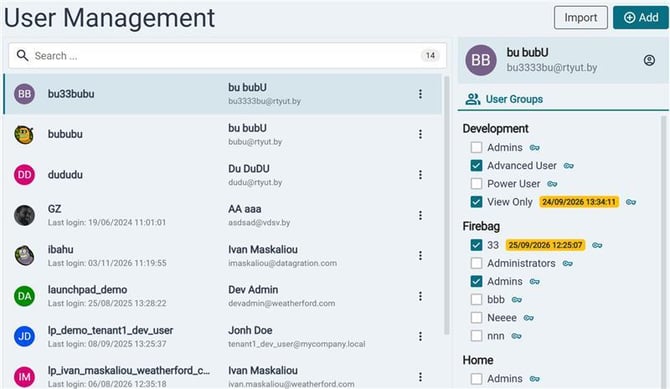
The Add/Modify Mapping dialog is shown below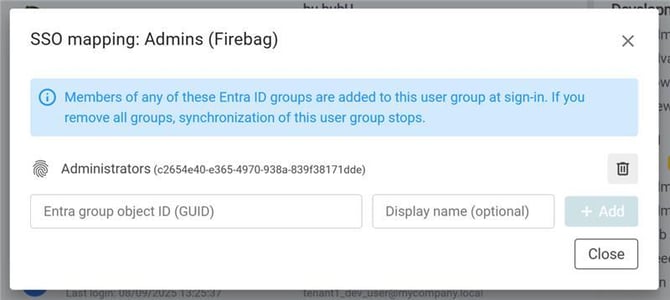
Note: Each PetroVisor user group can be mapped to one or more Entra ID user groups.